MARKETPLACE
PLUGINS
SMART PASSWORD VALIDATOR
Smart Password Validator logo

Smart Password Validator

Published April 2026
   •    Updated May 2026

Plugin details

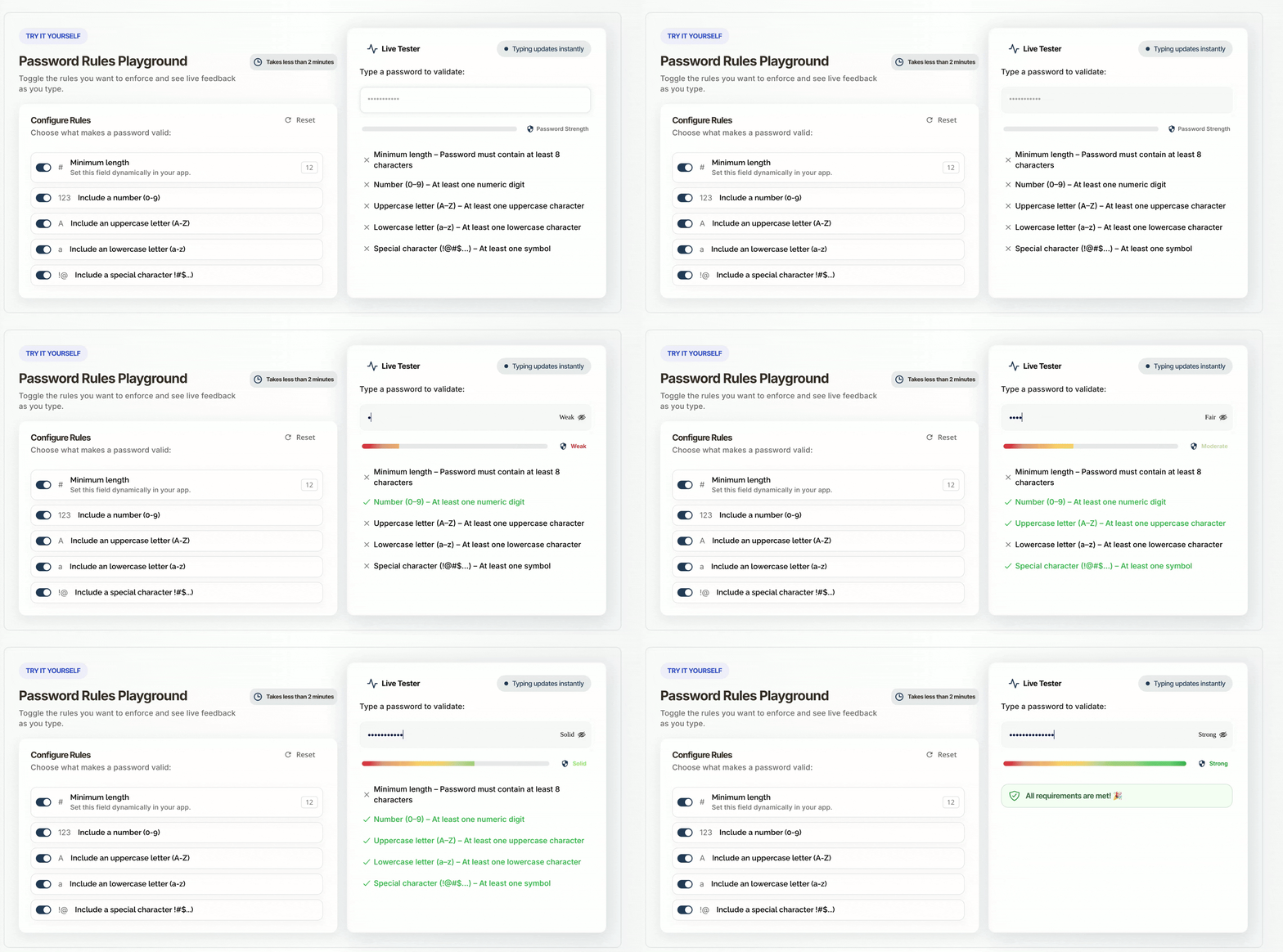
Validate passwords in real time with fully customizable security rules. Configure your password policy, drop the plugin, and get instant feedback states for length, numbers, uppercase, lowercase, symbols, and overall strength — without writing a single workflow.


⚡ Main Functions

• Real-time password validation (instant feedback)
• Configurable rules (length, number, uppercase, lowercase, symbol)
• Password strength score (0–100)
• Custom strength labels (Weak, Fair, Solid, Strong)
• Show / Hide password toggle inside input
• Fully customizable icons and styles

⚡ How it works:

The plugin attaches to a Bubble input using its HTML ID. It listens to the input and evaluates the password against your configured rules, updating states and UI elements in real time.

$16

One time  •  Or  $3/mo

5.0 stars   •   1 ratings
2 installs  
This plugin does not collect or track your personal data.

Platform

Web & Native mobile

Contributor details

Viorica Foca logo
Viorica Foca
Joined 2024   •   4 Plugins
View contributor profile

Instructions

📌 Setup Steps
1. Enable Input IDs in Bubble — go to Settings → General → enable the "Expose the option to add an ID attribute to HTML elements" option.

2. Add an ID Attribute to your password Input (e.g., signup_password
).

3. Add the Smart Password Validator plugin element on the page — it is invisible at runtime, place it anywhere.

4. Set the Input ID field to match the ID of your password input (no # symbol, no spaces).

5. Configure your security rules under 🔐 Validation Rules: Minimum Length, Require Number, Require Uppercase Letter, Require Lowercase Letter, and Require Symbol.

6. (Optional) Under 👁 Visibility, enable Enable Show/Hide Toggle and provide image URLs for Show Password Icon and Hide Password Icon. Configure Icon Size, Icon Transparency, and Icon Left Margin.

7. (Optional) Under 📊 Strength Indicator, enable Show Strength Indicator and customize the four labels: Weak Label, Fair Label, Intermediate Label, and Strong Label.

8. (Optional) Under 🎨 Text Styling, style the strength label: Font Size, Font Family, Font Color, Font Transparency, and Icon-Text Spacing.

9. Use the exposed states in workflows:
- valid_password (yes/no) — gate your sign-up button
- empty_password (yes/no) — show/hide hints
- strength (number 0–100) — drive a progress bar
- num_character, number, upper_case, lower_case, symbol (yes/no) — display per-rule hints

Support

[email protected] - for setup help, bug reports, and questions.

Types

This plugin can be found under the following types:

Categories

This plugin can be found under the following categories:
Technical   •   Data (things)   •   Productivity   •   Input Forms

Resources

Support contact
Documentation
Tutorial

Rating and reviews

Average rating (5.0)

Does exactly what I needed
May 1st, 2026
Very easy to set up and use. It covers everything I need for password validation, including a nice strength indicator.
Thank you for your feedback! Glad to hear the plugin was easy to use and met your needs. (plugin author)
May 1st, 2026
  •  
Viorica Foca
Bubble